Get started right now with Lumina
Get started right now with Lumina
Step 1: Download Remy (it's free)
Step 1: Download Remy (it's free)
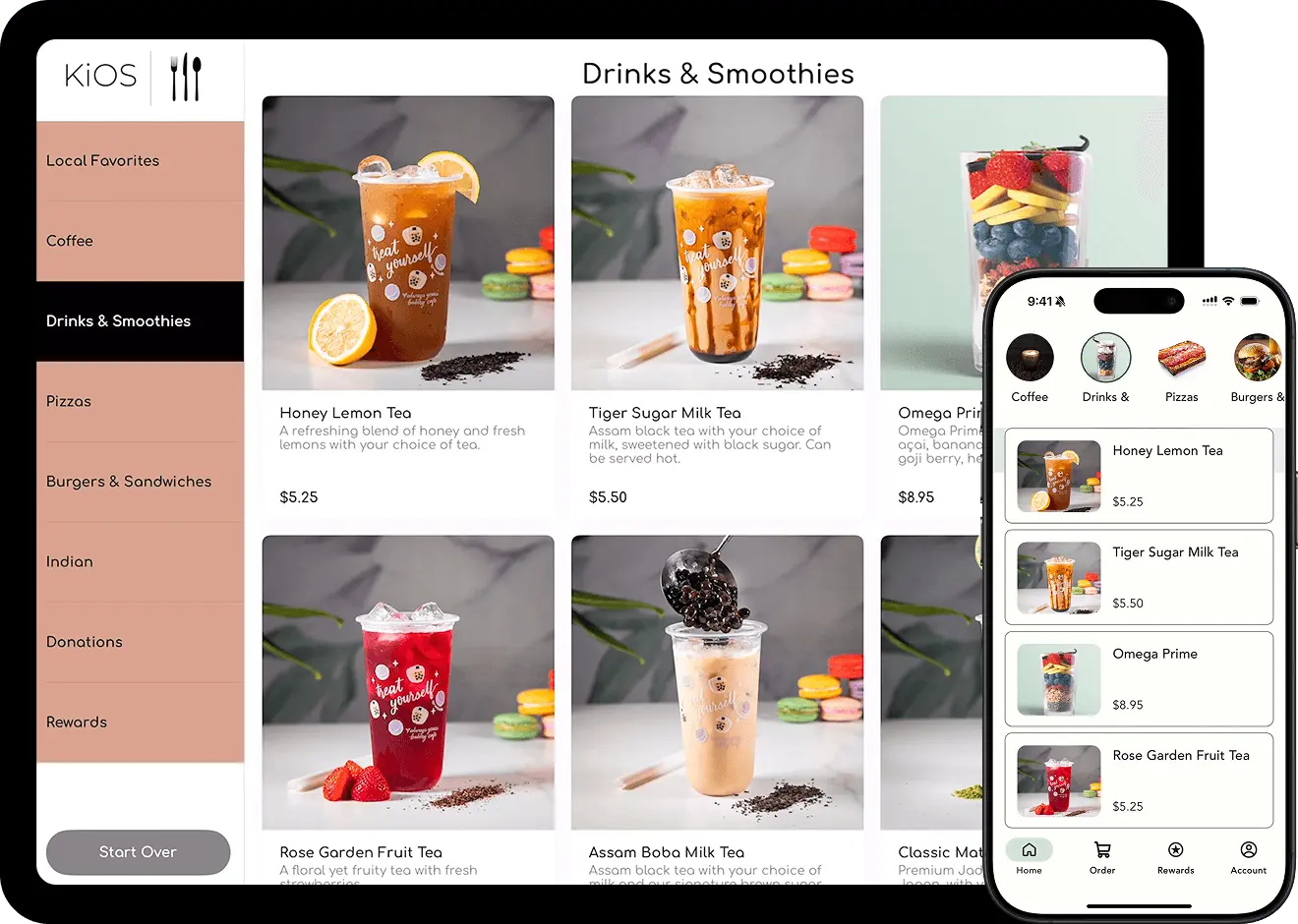
First download Remy, Lumina’s location management app, to your phone and connect it to your Square account. You can then see how your menus look on display and order your kiosks.
First download Remy, Lumina’s location management app, to your phone and connect it to your Square account. You can then see how your menus look on display and order your kiosks.
Step 2: Sync your menus
Step 2: Sync your menus
As your hardware makes its way over to you (typically in 3-5 business days), get geared up for installation by setting up your kiosk menus in Remy. With our team on standby if you need help.
As your hardware makes its way over to you (typically in 3-5 business days), get geared up for installation by setting up your kiosk menus in Remy. With our team on standby if you need help.
Step 3: Setup your kiosks
Step 3: Setup your kiosks
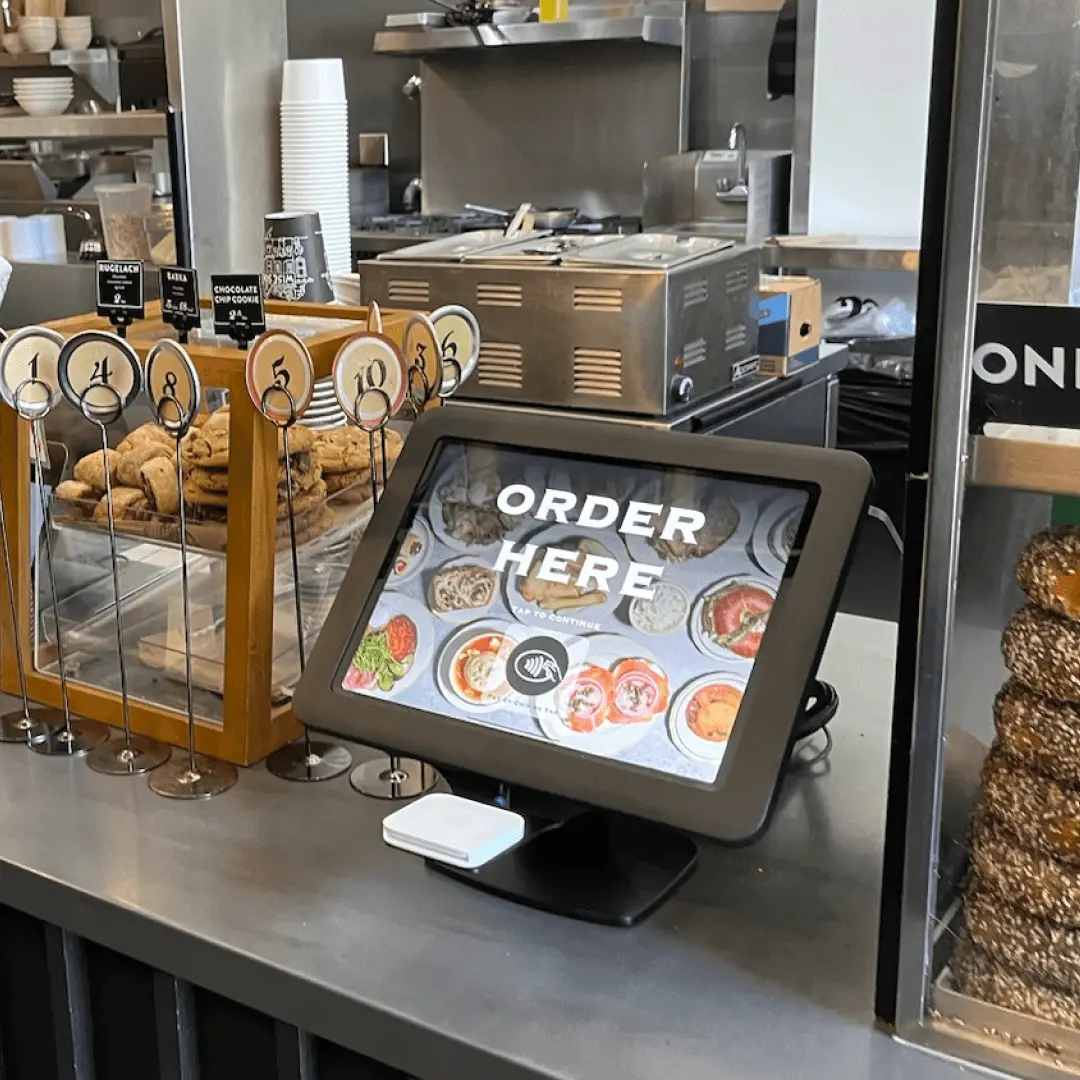
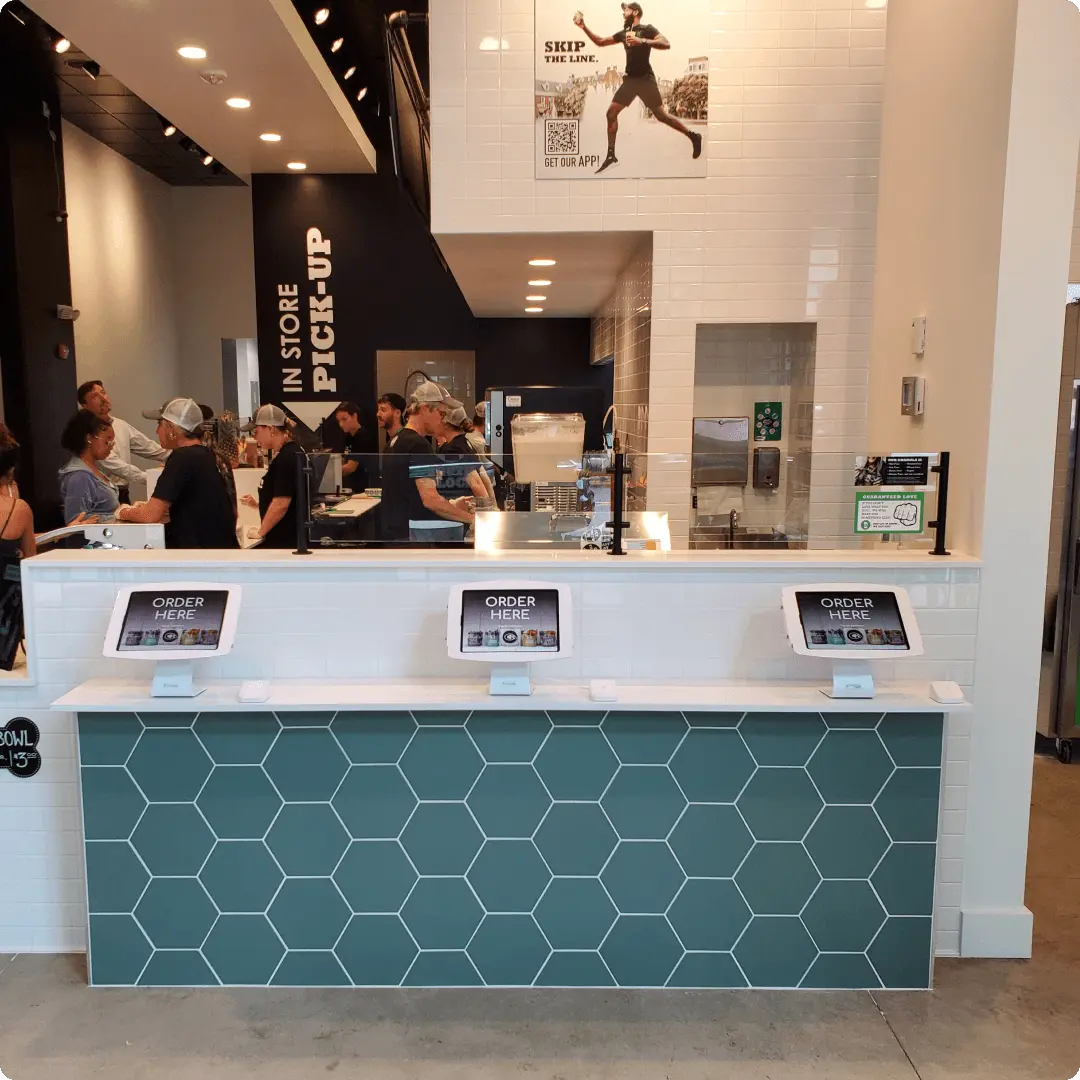
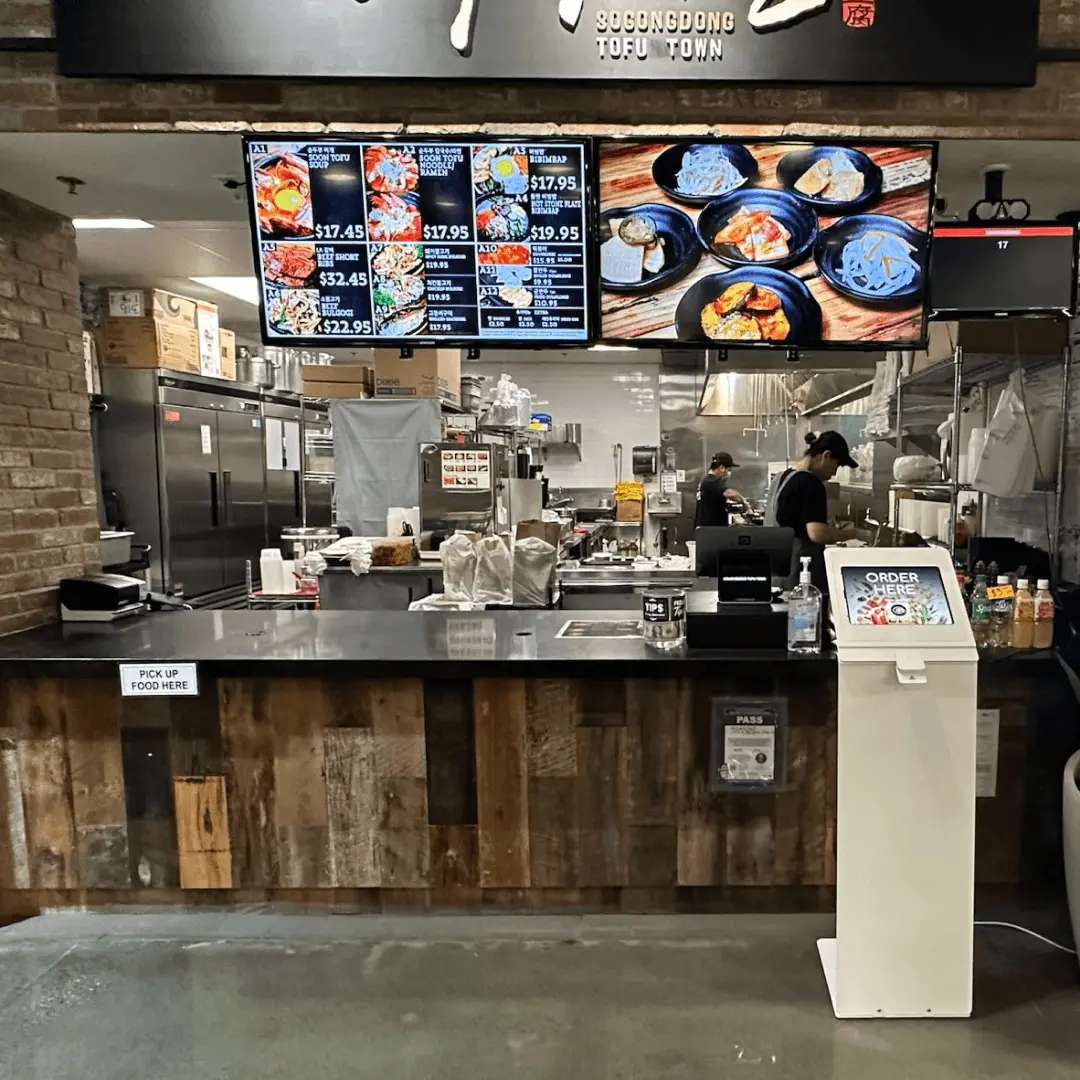
Your hardware arrives with all software preloaded and all the cables, chargers, and mounts you need. So as soon as your tablets are charged, pop them into their mounts and you’re good to go.
Your hardware arrives with all software preloaded and all the cables, chargers, and mounts you need. So as soon as your tablets are charged, pop them into their mounts and you’re good to go.
Step 4: Start taking orders
Step 4: Start taking orders
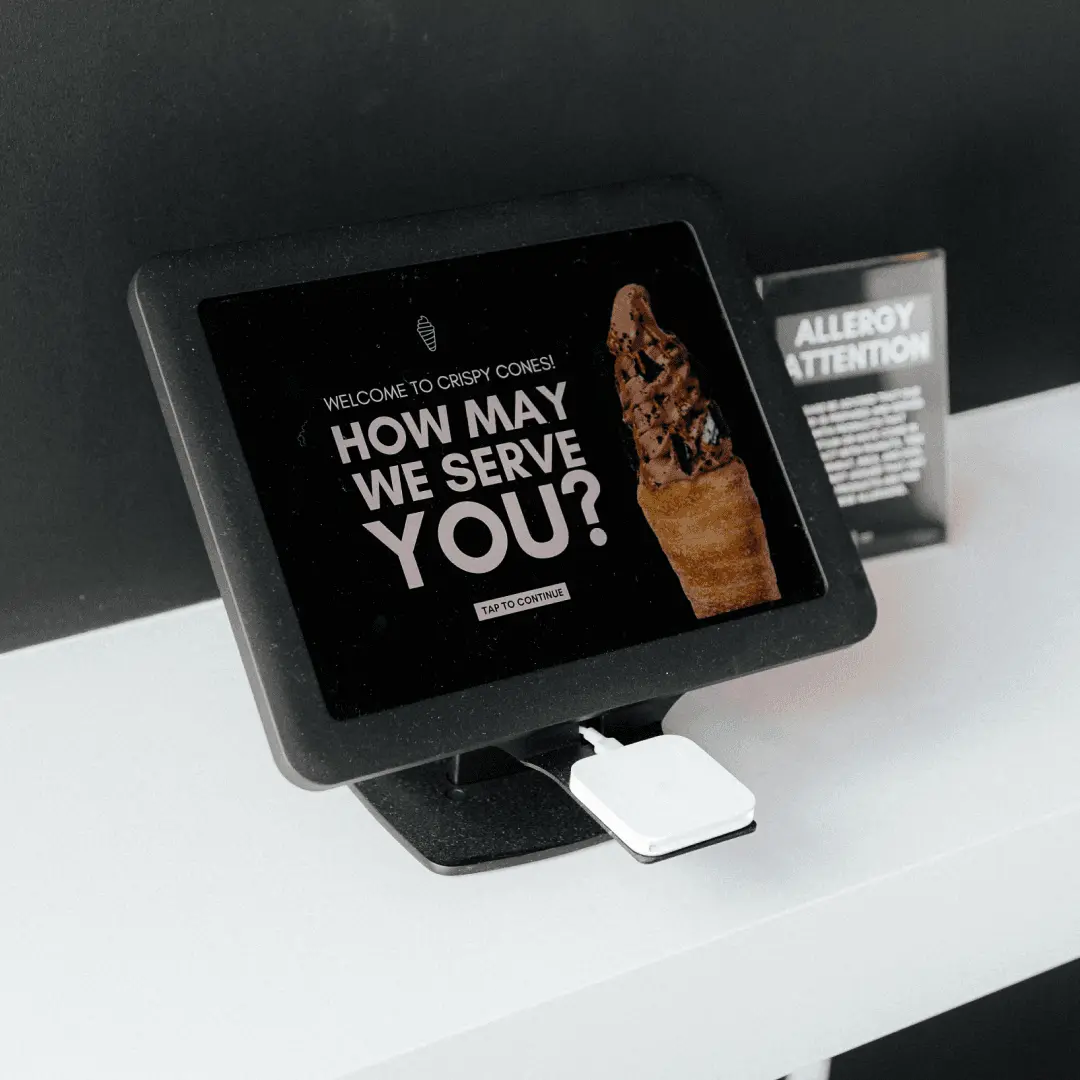
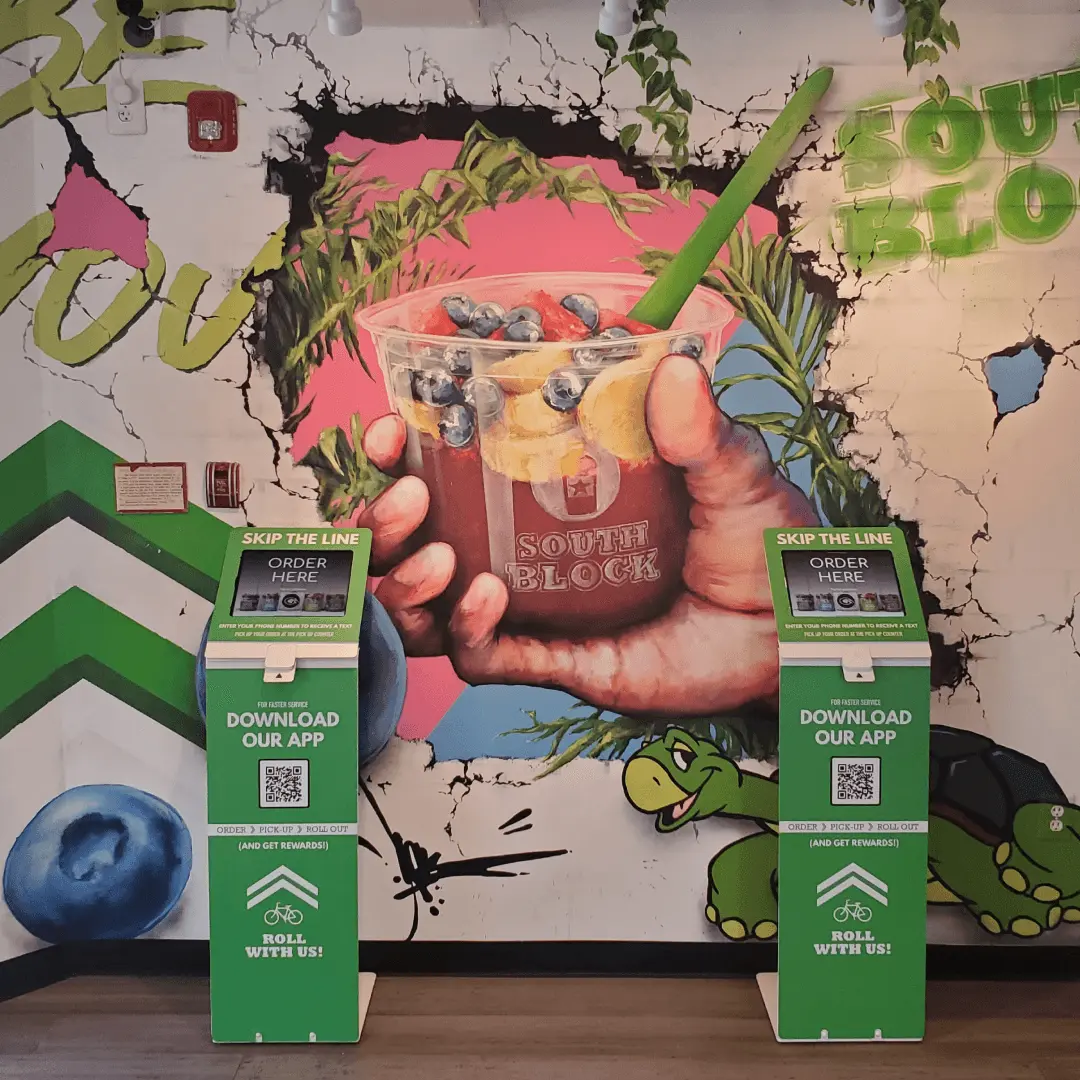
With your kiosks plugged in, you can start taking orders immediately — because your customers and staff won’t need any special training to figure out to use them. They’ll just know :)
With your kiosks plugged in, you can start taking orders immediately — because your customers and staff won’t need any special training to figure out to use them. They’ll just know :)